
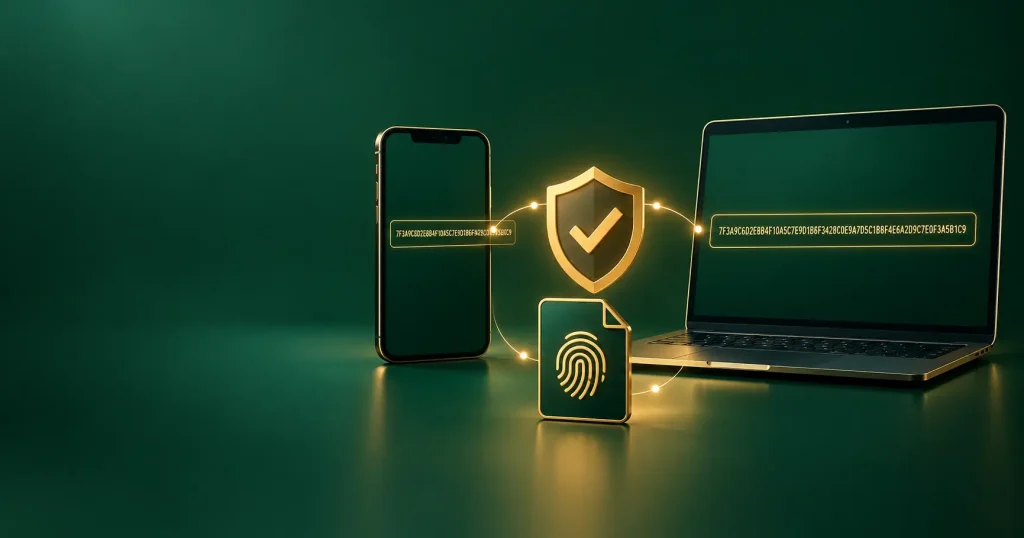
Quick answer: to verify an APK checksum, calculate the file’s SHA-256 value and compare it with the one on the download page. A SHA-256 checksum is a 64-character fingerprint of a file. If the checksum of the APK you downloaded matches the one published on the download page, the file is byte-for-byte identical to the published file. If even one character differs, the file has been changed or damaged, and you should not install it.
What does a SHA-256 checksum prove?
It proves the file is unchanged. It does not prove the app is safe or legal: it only confirms you received the same file that was published. That still matters for APK files, because a file passed around on messaging groups or re-uploaded to other sites can be modified to include extra code.
Every game page on Rumble Rummy lists the SHA-256 checksum of its APK file in the File details table, along with the version, package name and file size.
How do I verify an APK checksum on Windows?
- Open the Start menu, type
cmdand open Command Prompt. - Run this command, replacing the path with your file’s location:
certutil -hashfile "%USERPROFILE%\Downloads\app.apk" SHA256 - Compare the long string it prints with the checksum on the game page.
In PowerShell you can use Get-FileHash .\app.apk -Algorithm SHA256 instead. Microsoft documents certutil in its certutil reference.
How do I check it on a Mac or Linux?
Open Terminal and run:
- macOS:
shasum -a 256 ~/Downloads/app.apk - Linux:
sha256sum ~/Downloads/app.apk
How do I check it on an Android phone?
Android has no built-in checksum tool. You have two options:
- Install a checksum or “hash” app from the Play Store, open the APK in it and choose SHA-256.
- If you use Termux, run
sha256sum /sdcard/Download/app.apk.
Alternatively, download the file on a computer, check it there, and then copy it to your phone.
How do I compare the two values?
Compare the whole string, not just the first few characters. Upper and lower case don’t matter (A3F and a3f are the same). The easiest way is to paste both values into a note, one under the other.
| Result | What it means | What to do |
|---|---|---|
| Values match | The file is identical to the published file | Safe to continue with installation |
| Values differ | The file was changed, corrupted or is a different version | Delete it and download again from the official page |
Can I check who signed the app?
Yes. Every Android app is signed with a developer certificate, and an update must be signed with the same certificate. If you have the Android SDK build tools installed, run:
apksigner verify --print-certs app.apk
It prints the certificate’s details (see Google’s apksigner documentation). For example, all 14 APK files currently listed on Rumble Rummy are signed with the same developer certificate, named “lamislot”. A different signer on a file with the same name means it isn’t the same app.
What should I check besides the checksum?
- Package name: after installing, Settings › Apps › the app › App details shows it. It should match the package name on the game page.
- Permissions: compare what the app asks for with the permissions list on its game page.
- Version: an older or newer version has a different checksum, so make sure you compare against the right version.
Once you verify the APK checksum, the next step is installing the APK on Android safely.